


Because Android doesn’t have a native smart app banner, marketing teams have had to turn to other options to fill the gap. iOS Safari has offered built-in smart banner support since iOS 6.Google has never released a comparable solution for Chrome, Firefox, Samsung Internet, or any other Android browser.
This guide breaks down the three main implementation approaches for Android smart banners, cover the technical infrastructure you’ll need, and walk through how to get Branch Banners live on your site to convert mobile web traffic into engaged app users.
What is a smart app banner on Android?
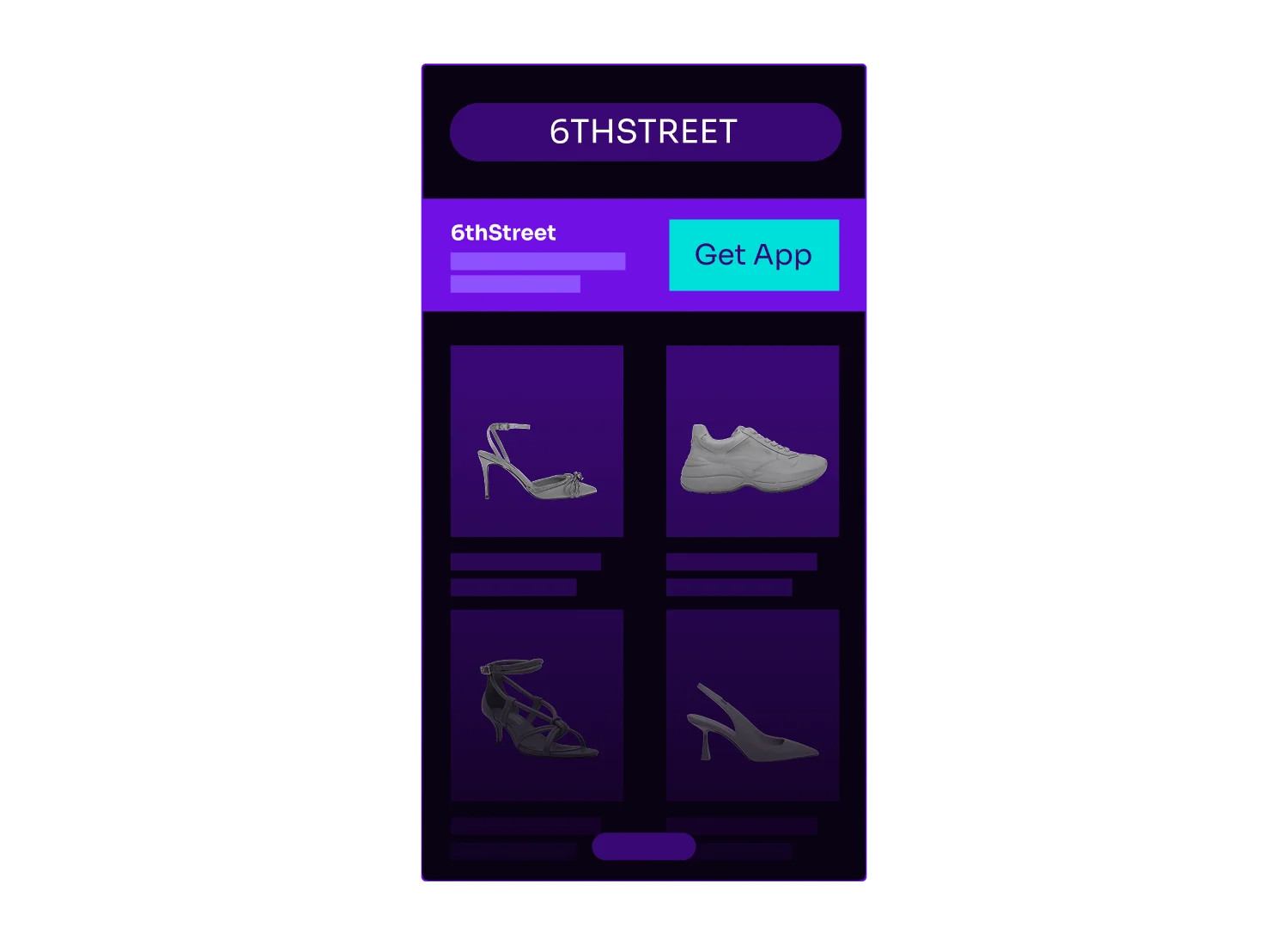
A smart app banner is a compact element displayed at the top or bottom of a mobile website that prompts visitors to open your native app if it’s already installed or directs them to the app store if it’s not. On iOS, Safari offers a basic native banner via a single meta tag. It can’t detect whether your app is installed, route to deferred deep links, or attribute downstream conversions. On Android, there’s no native option at all.
Without a smart banner, Android users on your mobile site have to manually search for your app in the Play Store, a friction point that causes most visitors to abandon the journey. Android smart banners solve three problems:
- Detecting whether your app is installed
- Routing users to the right destination
- Tracking interactions to measure and optimize conversion rates
Three approaches to implementing Android smart app banners
Android smart app banners have three options. The right approach depends on your team’s technical resources, budget, and how much attribution data you need.
Branch SDK integration for deep linking and attribution
Branch is the full-stack solution for teams that need reliable attribution alongside their smart banner, plus audience targeting, deferred deep linking, and full design customization. It is the only approach here that connects banner interactions to the complete user journey, from first tap through install to in-app conversion. The Branch Web software development kit (SDK) handles app detection, routing, and deferred deep linking across every Android browser, with no browser-specific workarounds required.
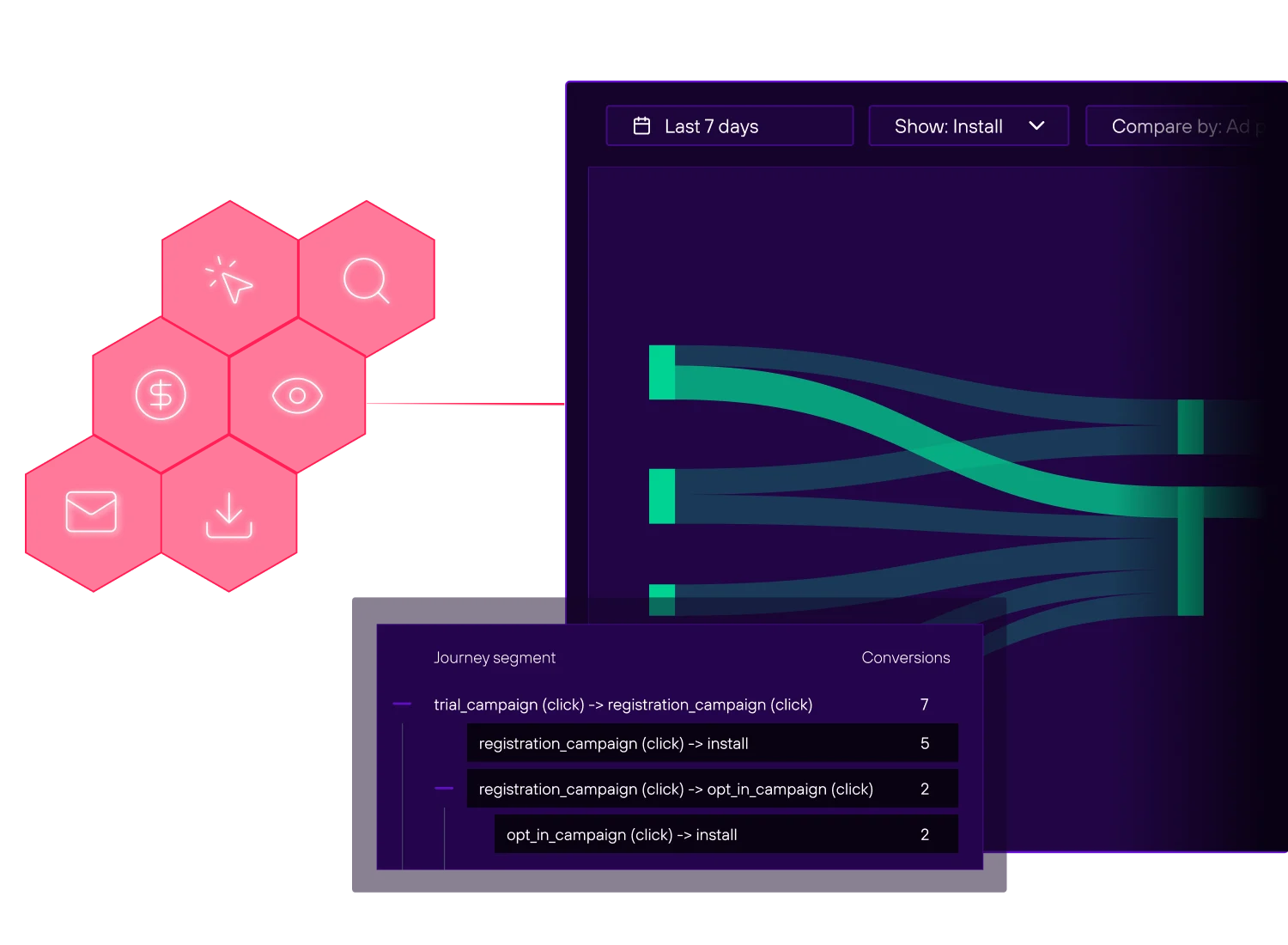
Branch connects a banner tap to downstream conversion events. Branch presents clicks, installs, and mobile web pages that drive purchases or subscriptions to services. Branch also supports A/B testing banner variations directly from the dashboard, letting your marketing team optimize without touching code.
Integrate the Branch SDK into both your website and your Android app, then configure Android App Links. Set up your app code for deep linking using either the canonical URL or deep link path from the Branch data, detailed in this Branch blog post. That integration investment is beneficial for teams that need full attribution and cross-platform user acquisition measurement.
Open-source libraries like smartbanner.js
Open-source libraries like smartbanner.js offer a middle path: more customization than a DIY build, with lower up-front cost than a managed platform. These libraries handle basic banner display logic and let you configure appearance through HTML data attributes or a JavaScript config object.
Most open-source options provide minimal attribution. Open-source options provide click counts via Google Analytics, but connecting those clicks to installs or in-app conversions requires additional instrumentation. App detection on Android is also inconsistent across libraries. Some users may see an “Install” prompt even when your app is already on their mobile device.
Custom HTML/CSS/JavaScript implementation
Building your own banner gives you complete control over every pixel and behavior. You define the markup, style it to match your brand exactly, and write the JavaScript logic that handles app detection and routing.
App detection on Android is unreliable without a platform like Branch. The most common workaround involves attempting to open a URI scheme and falling back to the Play Store after a timeout, which produces inconsistent results across devices and browsers.
On Android, the deterministic path for deferred deep linking is the Google Play Install Referrer API, which passes a referrer string from the Play Store to the app on first launch. A DIY implementation has to integrate the Install Referrer API on the app side and reliably attach a deep link parameter to the Play Store URL on the web side. Without that infrastructure, teams fall back to probabilistic matching on signals like IP, user agent, and timestamp. That infrastructure degrades as browser privacy restrictions tighten.
Custom builds make sense for teams with dedicated mobile engineering resources who have specific requirements that no existing solution can meet. Branch Banners are fully customizable using the HTML and CSS code editor, so you get all of the customization functionality alongside the app detection logic.
Setting up Android intent links and app detection
Configuring Android App Links and intent filters
Android App Links, available on Android 6.0 (API level 23) and higher, let your app claim ownership of specific HTTP and HTTPS URLs on a domain you control. When verification succeeds, Android routes taps on those links straight to your app, skipping the disambiguation dialog. On Android 12 and higher, this is stricter: unverified web links open in the browser by default rather than prompting the user.
Setup involves two pieces:
- Declare an intent filter in your AndroidManifest.xml that handles VIEW actions for both the http and https schemes on your domain, with
android:autoVerify="true"on the filter and the BROWSABLE and DEFAULT categories included. - Host a Digital Asset Links JSON file at https://yourdomain.com/.well-known/assetlinks.json containing your app’s package name and SHA-256 signing certificate fingerprint. At install time (and on app updates), Android fetches that file and verifies the fingerprint matches your installed app’s signing cert. When you use Branch for your deep linking solution, we automatically host the DAL file on your app.link domain for you based on the SHA256 fingerprint(s) you add on the Branch dashboard.
Detecting app installation status with JavaScript
Knowing whether a user has your mobile app installed determines whether your banner shows “Open” or “Install.” On Android, there’s no native browser API for this.
The standard Android workaround is to attempt a URI scheme launch (e.g., yourapp://) and set a short timeout. If the timeout fires first, you assume the app isn’t installed and redirect to the Play Store. Some browsers block URI scheme launches, and timing varies across devices.
Branch’s Web SDK abstracts this complexity entirely. Because Branch maintains a large pool of cookies tied to device identifiers, it sets a has_app flag once a user has opened your app at least once with the Branch SDK integrated. The Web SDK reads that flag on subsequent visits and routes the user accordingly across Chrome, Firefox, Samsung Internet, and other Android browsers. Detection is highly accurate but not absolute, since neither Android nor iOS exposes installation status directly to developers.
Tracking and measuring smart banner performance
Reliable measurement starts with four foundational events:
- CTA views (banner displays)
- Dismissals (banner closed without tapping)
- Clicks (banner taps)
- Installs (app downloads after click)
Together, these let you calculate the metrics that tell you whether your banner is actually working:
- View-to-click rate: Is your messaging compelling enough to earn a tap?
- Dismiss rate: Are users actively rejecting the banner, or just ignoring it?
- Click-to-install rate: Is the post-click experience holding up?
From there, the real value comes from connecting those installs to what users do next. With Branch, attribution follows the full journey — from banner impression through install to in-app conversion — even when the install happens days after the initial tap, within Branch’s configurable attribution window. You can track downstream events like purchases, registrations, and content views back to the specific banner interaction that started the chain.
Four types of events are trackable through the Branch SDK depending on your KPIs:
- Commerce events (add to cart, purchase)
- Content events (search, view item)
- Lifecycle events (complete registration, login)
- Custom events specific to your app.
For Branch implementations, foundational events are tracked automatically and visible in your dashboard. For open-source or custom builds, fire events manually to your analytics platform and tag each with page URL, user segment, and traffic source. Basic attribution is achievable through UTM parameters and Google Analytics, but connecting web sessions to app sessions requires additional instrumentation that gets complex quickly.
Review The Ultimate Guide to Mobile App Event Tracking for more details event tracking..
Best practices for Android smart banner UX and performance
When implementing Android smart banners, follow best practices:
- Respect user dismissal. If a mobile user closes your banner, don’t show it again immediately. Set a frequency cap of at least 24 hours. With Branch Banners, you can configure the dismissal period directly within the Branch platform, without any code updates.
- Load the SDK asynchronously. Your banner JavaScript should never block page rendering. Branch’s Web SDK loads asynchronously by default. If you’re building custom, ensure your script tag includes the async attribute.
- Match CTA copy to context. “Open App” converts better than “Open” for users who have your app installed. “Get the App” outperforms “Install” for new users. Small changes in button text can shift click-through rates, and these can be configured, edited, and A/B tested directly in the Branch platform.
- Target by traffic source. Users arriving from paid social campaigns often need different messaging than organic search visitors. Segment your banner audiences accordingly. Branch Banners allow you to target based on several criteria including page URL, meta tags, and users that performed certain events previously.
- Test on real devices. Android’s browser fragmentation means behavior in Chrome DevTools emulation doesn’t always match real-device behavior. Test on actual Android hardware across Chrome, Samsung Internet, and Firefox before launching. Follow these best practices for testing Branch Banners to ensure comprehensive validations.
How to implement Branch Banners for Android smart banners
Branch Banners manages Android smart banner complexity in one place: app detection across every Android browser, deferred deep linking, attribution, and design customization.
For effective implementation, follow this step-by-step process.
Step 1: Create your Branch account and configure your link routing
First, head to the Branch Dashboard and follow the instructions to create your account. You’ll define all the different endpoints so Branch knows where to redirect the user in every scenario. For Android specifically, have your app’s package name ready. Branch uses this identifier to detect installation status and route users correctly.
Step 2: Add the web SDK to your site
Next, retrieve your Branch key from the Dashboard under Account Settings > Profile. Paste the code snippet below into the Javascript tags on your site. Add the key you retrieved from the settings page in the key_live_YOUR_KEY_GOES_HERE section.
<script>
(function(b,r,a,n,c,h,_,s,d,k){if(!b[n]||!b[n]._q){for(;s<_.length;)c(h,_[s++]);d=r.createElement(a);d.async=1;d.src="https://cdn.branch.io/branch-latest.min.js";k=r.getElementsByTagName(a)[0];k.parentNode.insertBefore(d,k);b[n]=h}})(window,document,"script","branch",function(b,r){b[r]=function(){b._q.push([r,arguments])}},{_q:[],_v:1},"addListener applyCode autoAppIndex banner closeBanner closeJourney creditHistory credits data deepview deepviewCta first getCode init link logout redeem referrals removeListener sendSMS setBranchViewData setIdentity track validateCode trackCommerceEvent logEvent disableTracking".split(" "), 0);
branch.init('key_live_YOUR_KEY_GOES_HERE');
</script>
Replace key_live_YOUR_KEY_GOES_HERE with your actual Branch key. The SDK loads asynchronously, so it won’t affect page load times. Once initialized, it handles app detection, routing logic, and deep link parameter passing across all Android browsers.
Step 3: Set up your Banners smart app banner
Head to the Journeys section of the Branch Dashboard and follow the wizard to configure your smart app banner. For Android-specific campaigns, set your CTA text for both the “Install” and “Open” states. Branch detects installation status automatically and displays the appropriate prompt. You can also find full Journeys documentation on our developer portal.
Step 4: Configure your Android app for deep linking
Lastly, set up your native mobile app for deferred deep linking and install tracking easily by following our integration instructions for iOS or Android. Once complete, test the full flow on a real Android device:
- Tap the banner
- Install the app from the Play Store
- Confirm you’re routed to the correct in-app destination with all context preserved
Start building better Android smart app banners today
Open-source libraries like smartbanner.js work for teams with front-end resources and basic tracking requirements. Custom HTML/CSS/JavaScript builds offer maximum flexibility but demand significant engineering investment and ongoing maintenance.
Branch Banners delivers reliable attribution, deferred deep linking, and cross-browser compatibility, backed by the leading mobile linking and measurement platform. Your engineering team stays focused on core product work, and there’s no loss of customization options since Branch Banners feature a code editor that you can use to customize the HTML and CSS code to get pixel-perfect edits and customized functionality for your banners, with JavaScript functionality available as well.
Branch offers a comprehensive solution for marketers, providing reliable attribution and seamless user experiences, with Banners folded in as a small part of a greater whole. Banners is included on Branch’s Essentials and Enterprise plans, with a free trial available on the Basics plan to test your first campaigns, and Branch’s broader services can round out your mobile marketing stack with effective deep linking and performance tracking.
See it in action. Request a Branch Engagement demo →
Start building better Android smart app banners today
Google has never released a comparable solution for Android browsers, though iOS Safari has supported built-in banners via a single meta tag since iOS 6. Chrome experimented with a Native App Install Prompt, but it has since been removed from Chrome’s roadmap.
Android developers must use third-party platforms like Branch, open-source libraries, or custom implementations to achieve similar functionality across Chrome, Firefox, Samsung Internet, and other Android browsers.
When your Android app banner isn’t showing up, the most common causes are misconfigured audience targeting rules, JavaScript errors preventing SDK initialization, or browser compatibility issues.
Start by checking your browser’s developer console for errors when the page loads. If the SDK initializes correctly, review your Journeys targeting rules to confirm the banner is set to display on Android devices and matches the traffic source you’re testing from. Verify that you haven’t hit a frequency cap from a previous test session. Clearing your browser cookies and cache often resolves this during development.
To make the banner show “Open” vs. “Install” requires reliable app installation detection, which Android browsers don’t support natively. Branch Journeys handles this automatically. The Web SDK detects whether your app is installed and updates the CTA accordingly without any additional configuration.
For custom implementations, the standard approach is to attempt a URI scheme launch and fall back to the Play Store after a short timeout, though this method produces inconsistent results across browsers.