

Key takeaway:
Branch’s new Integration Validator for iOS automatically checks your setup and catches issues before launch.
Branch’s iOS software development kit (SDK) enables extensive functionality for your app, making it important to thoroughly test the integration before release. To streamline this process, Branch has revamped its Integration Validator tool to automate testing.
New functionality includes:
- Automated configuration testing for Branch keys, Bundle ID, Team ID, and domains
- A popup modal displaying test results
- Visibility showing which version of the Branch SDK you are using and which key (live or test) your app is currently pointing to
- Single-click log exporting
- Confirmation addressing whether or not the Identifier for Advertisers (IDFA) is accessible
This post explains how to use the new testing and validation features to ensure your Branch integration is set up correctly.
How to validate your Branch SDK integration
Before using Branch SDK features, verify your setup with the following steps:
1. Add the following line of code to the bottom of the didFinishLaunchingWithOptions function in your app: Branch.getInstance().validateSDKIntegration()
2. Run your app on a device or simulator. The Branch Integration Validator modal will appear and show the following information:
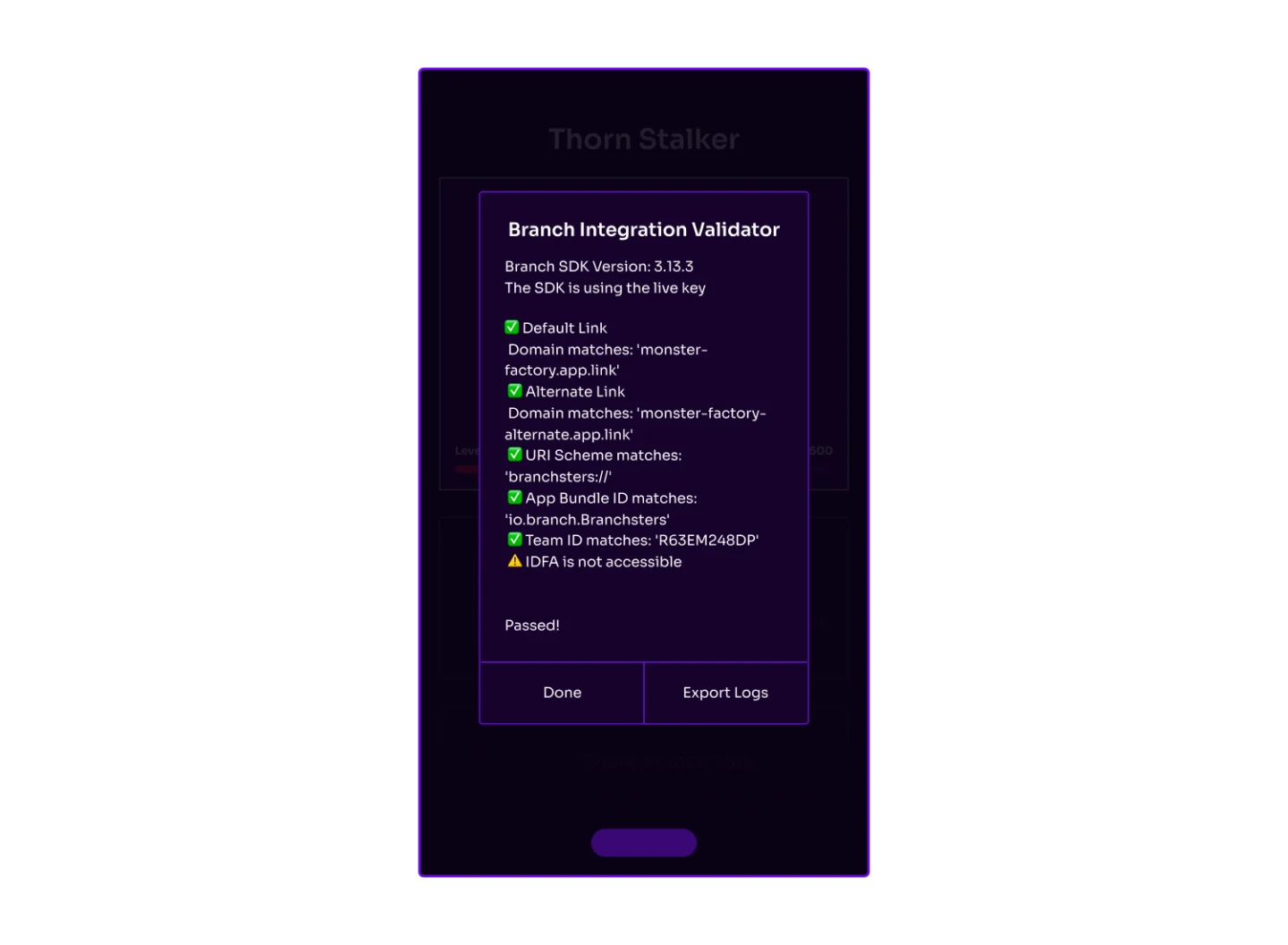
- SDK Version: Confirm you are using the latest version. Check the Branch iOS SDK Version History.
- App Key: Shows whether your app is pointing to the live or test environment.
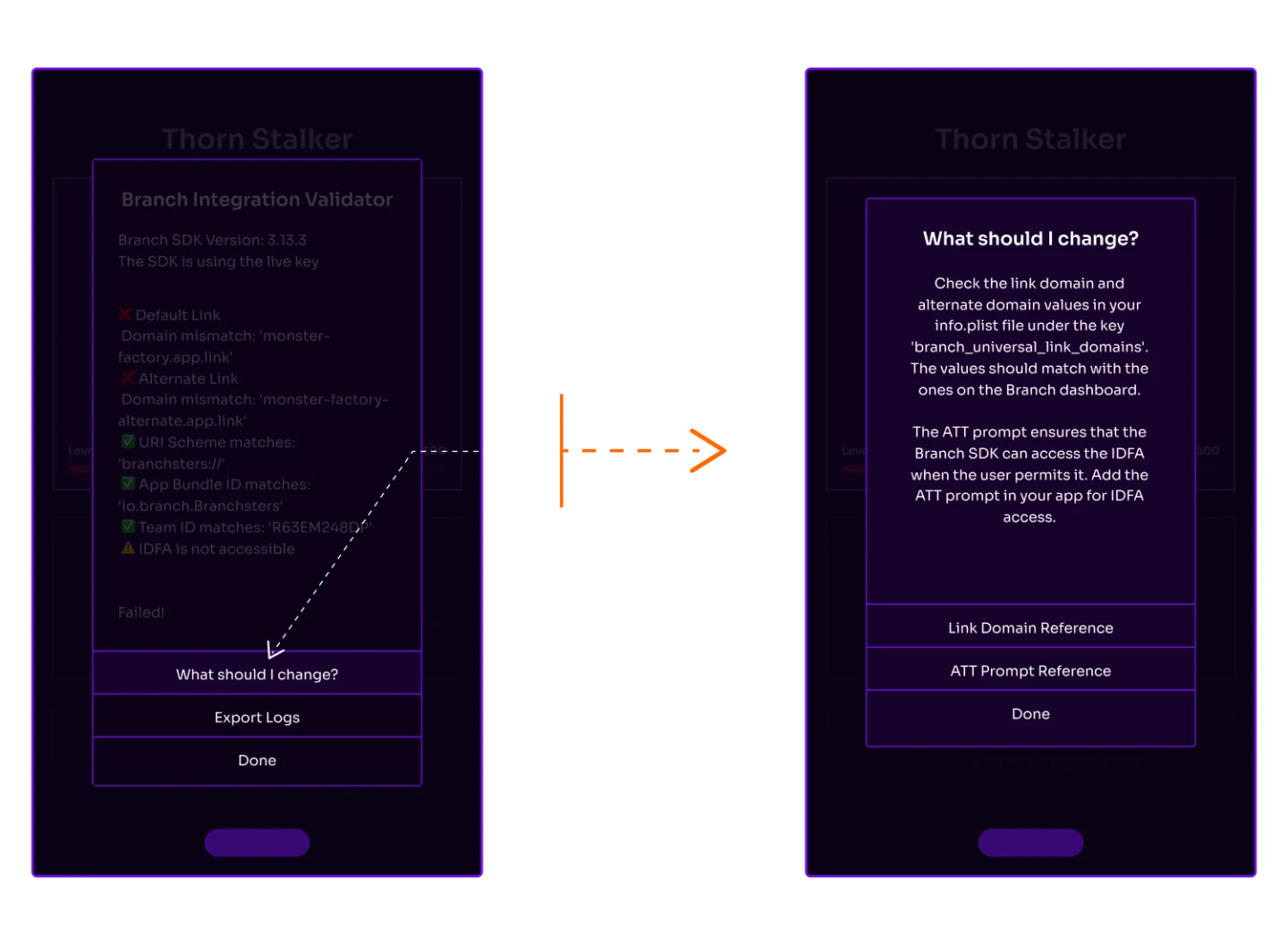
- Validation tests: Each line item represents an integration check, along with a check icon if the test passed or an “x” if it failed. Let’s review what each test means.
- Default Domains: Checks that the app.link and test-app.link domains from your Branch Dashboard have been added to the Info.plist and that the values match.
- Alternate Domains: Checks that the -alternate.app.link and -alternate.test-app.link domains from your Branch Dashboard have been added to the Info.plist and that the values match.
- URI Scheme: Ensures that the URI scheme you added to the Info.plist matches the URI scheme entered in your Branch Dashboard. This is important because Branch links will fall back to using URI schemes to open the app if Universal Links fail.
- App Bundle ID: Confirms that the Bundle ID used to sign the build matches the dashboard entry. Universal Linking requires this.
- Team ID: Confirms the Team ID used to sign the build matches the Team ID input on the dashboard. Universal Linking requires this match.
- IDFA Accessibility: Whether or not the IDFA is accessible in the app
If a test fails, a red ‘X’ icon will clearly indicate the incorrect configuration:
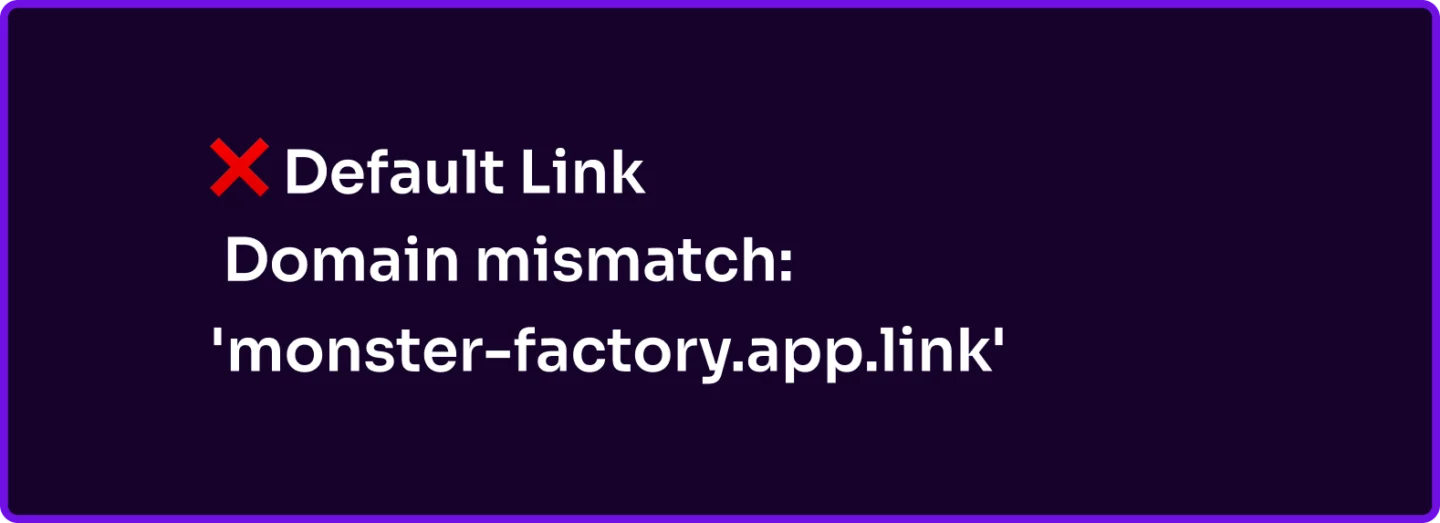
The XCode logs will also contain some additional details about the tests:

Click ‘What should I change?’ for a list of required edits, along with explanations of what each missing configuration controls.
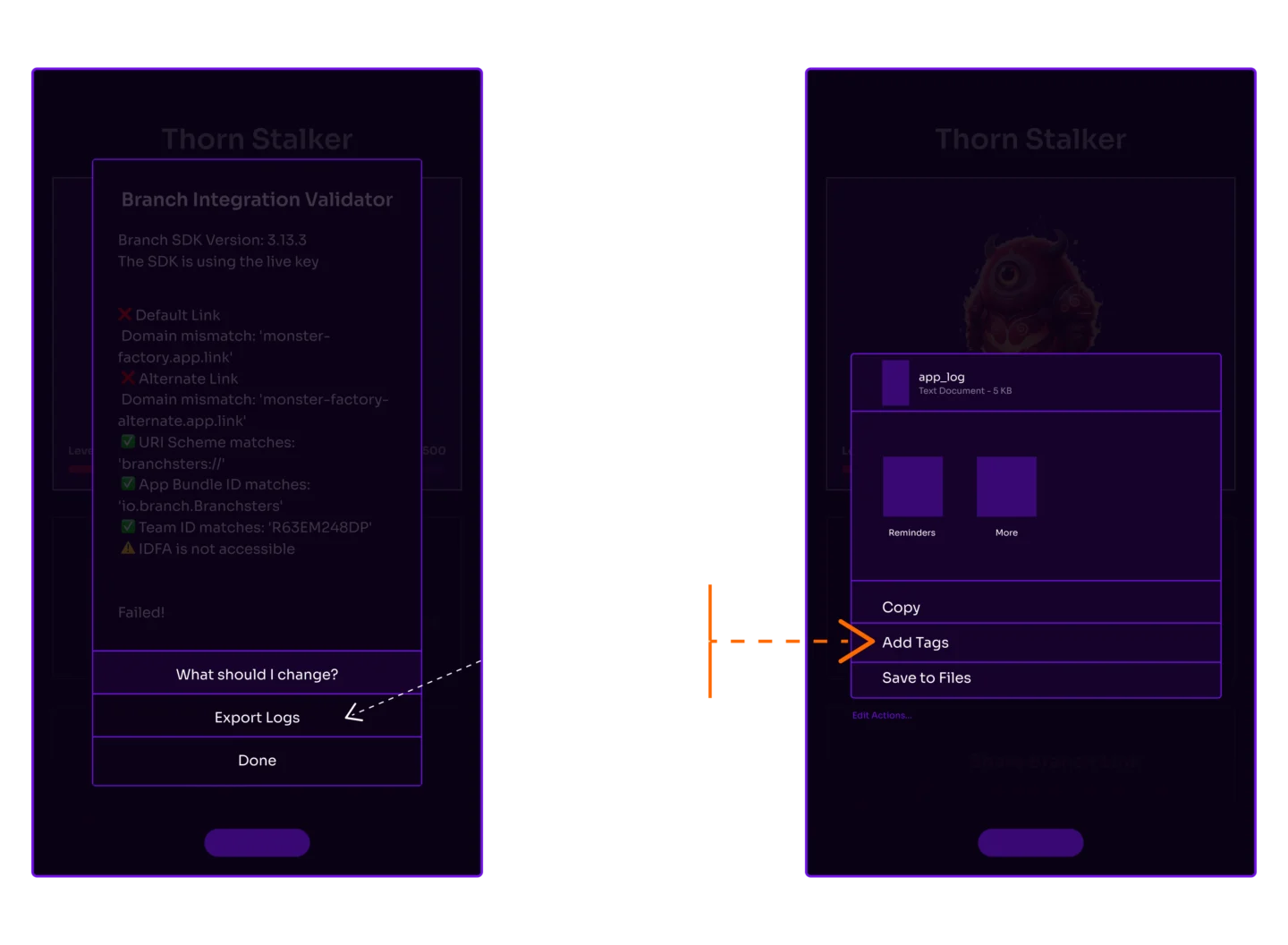
Use the ‘Export Logs’ button to copy or share logs. This is especially helpful if you need to contact [email protected] for assistance.
Using Branch’s Integration Validator spots and fixes configuration issues before releasing your app. To get started with Branch, request a demo.
Additional resources:
For troubleshooting assistance, reach out to your account team.